Understanding how visitors find and use your WordPress website can help you improve your content, evaluate your SEO results, and make better marketing decisions. Without accurate traffic data, it is difficult to determine which channels and pages are performing well and where improvements may be needed. With the right tools, however, tracking this information is relatively straightforward.
In this guide, we will explain how to set up traffic tracking in WordPress, which tools you can use, and which metrics are worth monitoring when analyzing your website's performance.
Key Takeaway:
Tracking WordPress website traffic helps you understand where visitors come from, how they interact with your content, and which pages perform best. With Google Site Kit and Google Analytics 4, you can monitor key traffic and engagement metrics and use this information to improve your content, SEO, and overall marketing strategy.
Why Is It Important to Track Website Traffic?
Tracking traffic to a WordPress website gives you a clearer picture of how users find your site and interact with its content. You can see which channels attract the most visits, which pages perform well, and where there may be opportunities for improvement.
Regular traffic analysis can help you:
- Evaluate your SEO results and identify the pages that attract the most organic traffic.
- Determine which pages and topics generate the most interest among your audience and use this information when planning new content.
- Understand where visitors come from, including search engines, social media, other websites, paid campaigns, and direct visits.
- Monitor engagement through metrics such as sessions, views, and average engagement time.
- Evaluate the performance of different marketing campaigns and channels.
- Identify underperforming pages that may benefit from updated content, clearer calls to action, or technical improvements.
Example: If a particular article receives a large number of visits from Google but few users continue to other pages on your website, you can check whether the content includes enough relevant internal links and clear next steps. Adding links to related articles or services can help direct some of that traffic to other important pages on your site.
Tools for Tracking Traffic in WordPress
Google Site Kit
Google Site Kit is Google's official plugin for connecting services such as Google Analytics 4 (GA4) and Google Search Console to your WordPress website. Key traffic and Google performance data is available directly from the WordPress dashboard, so you do not have to switch between different services constantly.
When connected to Google Analytics, the plugin can add the required Google tag without requiring you to insert tracking code manually.
Google Analytics 4 (GA4)
Google Analytics 4 is one of the most widely used tools for tracking and analyzing website traffic. It provides detailed information about where visitors come from, which pages they view, how they interact with your content, and whether they complete important business actions such as making a purchase, registering, or submitting an inquiry.
GA4 offers significantly more analytical capabilities than the summarized information available directly in WordPress through Site Kit. Google Analytics allows you to analyze traffic in greater depth and identify opportunities to improve your content and marketing activities.
Other Analytics Plugins
There are also third-party WordPress plugins that provide access to visitor statistics directly from the WordPress dashboard. Some use data from Google Analytics, while others provide their own tracking solutions.
Popular options include:
- MonsterInsights - connects WordPress with Google Analytics and displays key data and reports directly in the website dashboard.
- ExactMetrics - provides Google Analytics integration along with various reports on website traffic and visitor behavior in WordPress.
- Jetpack Stats - provides a simpler way to monitor visits, popular content, and traffic sources directly within WordPress.
- Matomo Analytics - allows you to track and analyze visitors using Matomo and is a suitable alternative for users who want greater control over their analytics data.
- Independent Analytics - a WordPress-focused solution that displays essential traffic statistics directly in the dashboard without requiring a connection to Google Analytics.
How to Get Started With Google Analytics and Site Kit
Before you can monitor visitor activity, you need to connect your website to Google Analytics 4 (GA4). The easiest way is to use Google's official Site Kit plugin, which connects supported Google services to WordPress and automatically configures the required Google tag for data collection.
Create a Google Analytics 4 Property
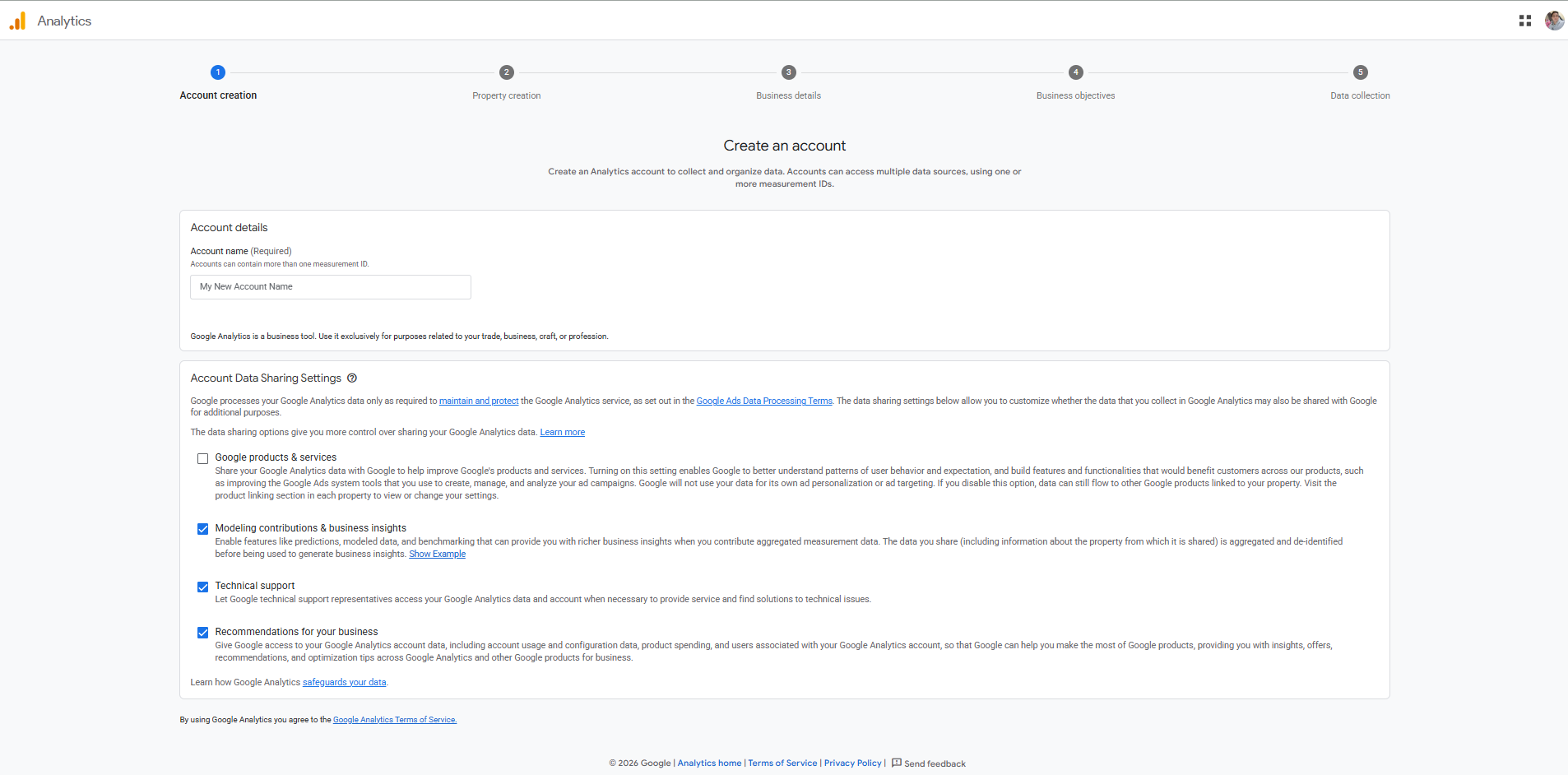
Sign in to Google Analytics and create a new GA4 property if you do not already have one. During setup, add a Web data stream by entering your website URL and a name for the stream.
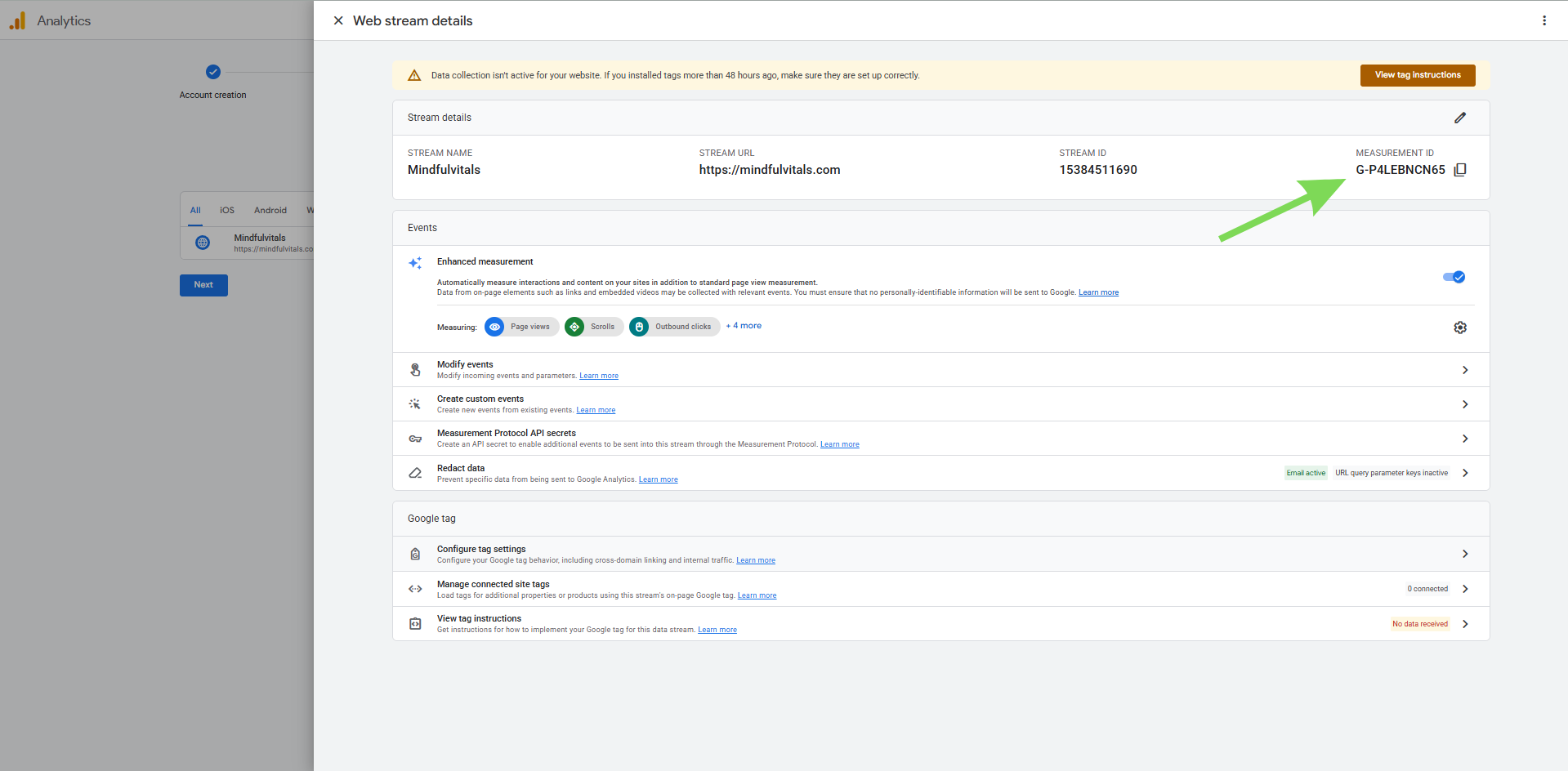
Google will create a unique Measurement ID (for example, G-XXXXXXXXXX) that identifies where your visitor data is collected. We recommend keeping Enhanced Measurement enabled so GA4 can automatically track events such as page views, scrolls, outbound clicks, file downloads, and video interactions.

Install Google Site Kit
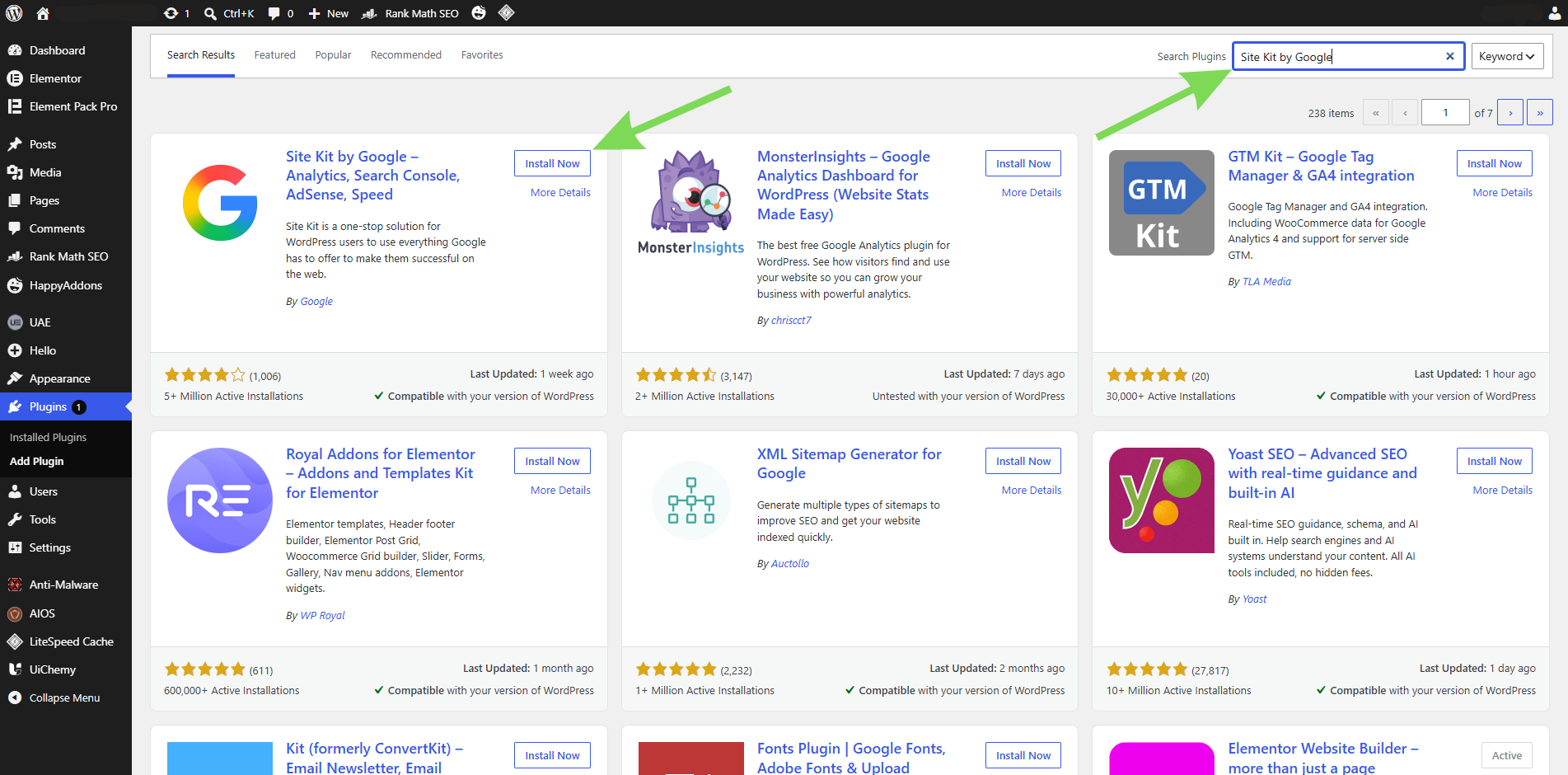
From your WordPress dashboard, go to Plugins > Add New, search for Site Kit by Google, then install and activate the plugin. The setup wizard will guide you through the connection process without requiring you to edit your theme files or add tracking code manually.
Connect Your Google Account
Launch the Site Kit setup wizard and sign in with the same Google account associated with your GA4 property.
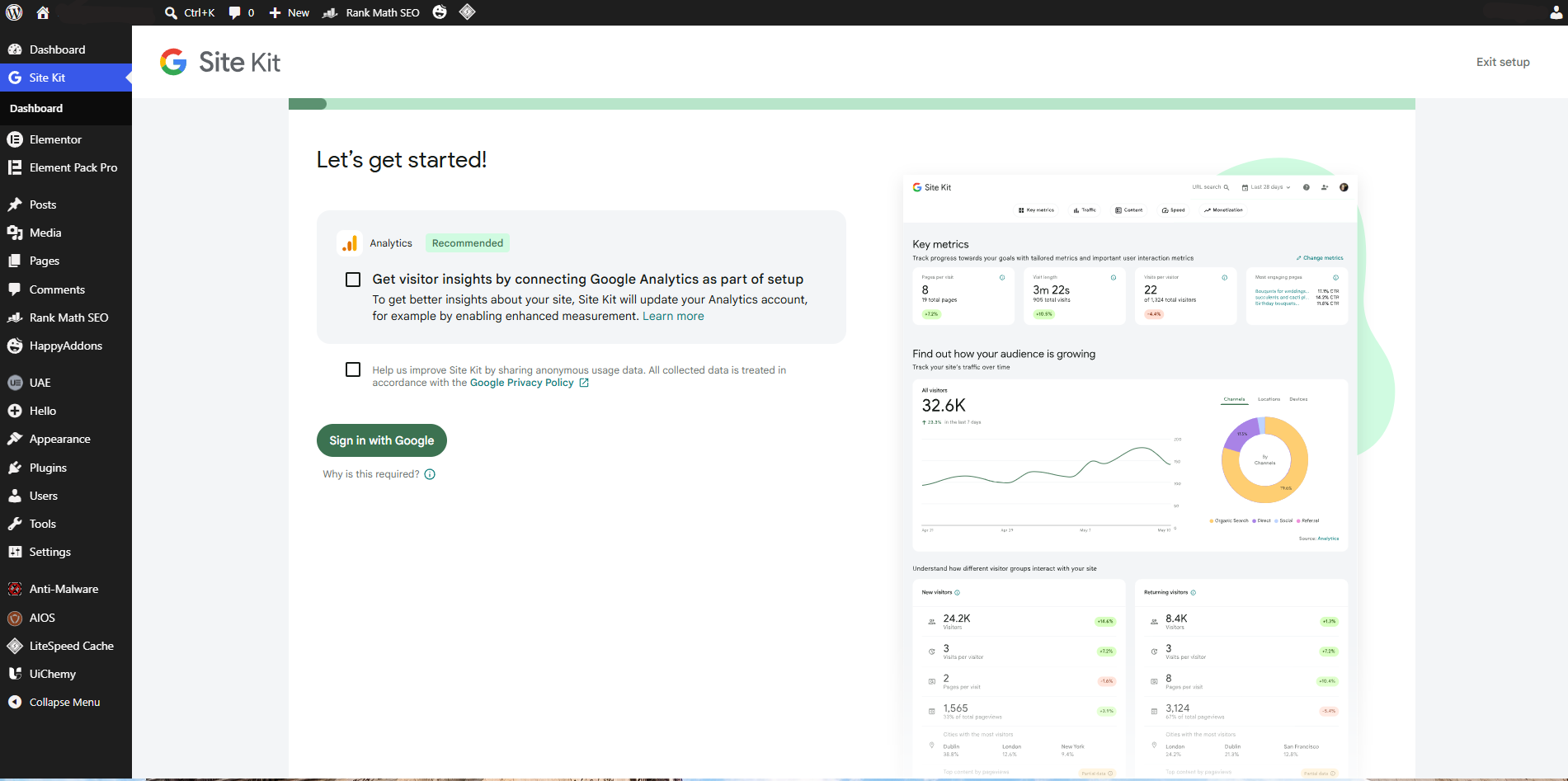
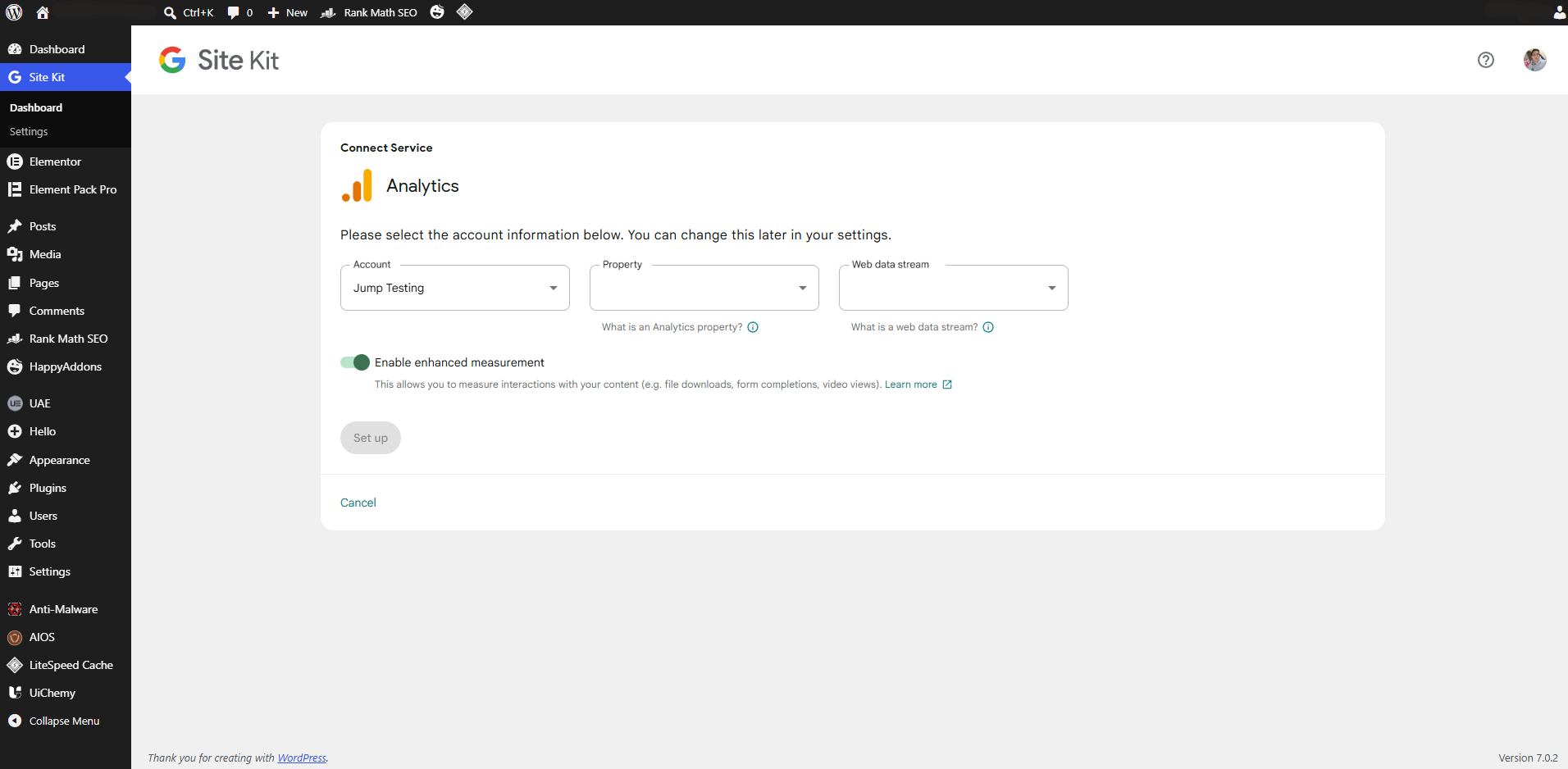
Follow the instructions to verify ownership of your website, then select the Analytics account, property, and Web data stream you want to connect. If you have already set up Google Search Console, you can connect it during the same process to view search performance data alongside your analytics data.
Check That Data Is Being Collected
Once the setup is complete, open the Realtime report in Google Analytics and visit your website from another browser or mobile device. If the visit appears within a few minutes, the connection is working correctly. Although Realtime data appears almost immediately, standard reports typically require up to 24-48 hours before they begin displaying enough information for meaningful analysis.
Where to Monitor Website Traffic and Performance
Once tracking is set up, you can use Site Kit and Google Analytics 4 for different types of checks. Site Kit is convenient for a quick overview directly within WordPress, while GA4 provides more detailed reports on traffic sources, visited pages, and user behavior.
- Site Kit for a quick overview: From the WordPress dashboard, you can view essential information about website visits and performance without opening Google Analytics separately. This is a convenient option for regularly checking overall trends.
- Traffic acquisition in GA4: This report shows where visitors come from, including organic search, direct visits, other websites, social media, and paid campaigns. It can help you identify which channels bring the most traffic to your website.
- Landing page in GA4: This report shows which pages users most often enter your website through. It can help you identify content that attracts the most visits, as well as pages with potential for further optimization.
- Realtime in GA4: This report shows current user activity and is particularly useful when you want to confirm that tracking is working correctly or monitor visits after publishing new content or launching a campaign.
Which Website Traffic Metrics Should You Track?
Google Analytics 4 provides a large number of metrics and reports, but you do not need to monitor all of them. To get started, it is enough to focus on a few key metrics that show how many people visit your website, where they come from, and how they interact with your content.
- Users: Shows the number of users who visited your website during the selected period. Tracking this metric over time can help you see whether your website audience is growing or declining.
- Sessions: Shows the number of visits to your website. A single user can have more than one session, for example, if they return to the website later.
- Views: Shows how many times pages on your website have been viewed, including repeat views. This metric can help you determine which pages and types of content attract the most interest.
- Traffic Sources: Show where visits come from, such as Organic Search, Direct, Referral, Organic Social, or Paid Search. This allows you to compare how much different channels contribute to your website traffic.
- Engagement Metrics: Metrics such as Average Engagement Time, Engaged Sessions, and Engagement Rate can help you understand how much visitors interact with your website and content rather than simply counting visits.
- Key Events: Important actions you have chosen to track, such as submitting a contact form, registering, making a purchase, or completing another call to action. Tracking them helps you evaluate not only how much traffic you receive but also whether that traffic leads to the desired results.
Do not look at these metrics in isolation. For example, an increase in traffic is a positive signal. Still, if key events do not increase along with it, it may be worth examining the quality of those visits and whether your pages effectively guide users toward the desired actions. You should also compare equivalent periods, such as the last 30 days with the previous 30 days, to get a clearer picture of trends or anomalies.
Conclusion
Once tracking is set up, the most important step is to turn the information you collect into concrete actions. Regularly check which channels bring valuable traffic, which pages deserve additional attention, and whether important business actions are increasing. You do not need to analyze every report in Google Analytics 4. Start with a few key metrics and monitor them consistently over time. This will make it easier to spot changes and determine where your next efforts are likely to have the greatest impact.
In addition to properly tracking and analyzing traffic, speed, security, and stable operation are important for the successful development of a WordPress site. At Jump.BG, we believe website analytics are most valuable when a fast, secure, and well-maintained WordPress environment supports your site. Our WordPress Hosting is optimized with LiteSpeed technology, generous CPU and RAM resources, free SSL certificates, unlimited traffic, and 24/7 technical support to help ensure reliable performance. If you also need expert help managing your website, our WordPress Support service includes core, plugin, and theme updates, performance optimization, security settings, and ongoing monitoring, allowing you to focus on growing your business.
To learn more about our WordPress Hosting or WordPress Support services, call 02 428 8888 or email support@jump.bg.