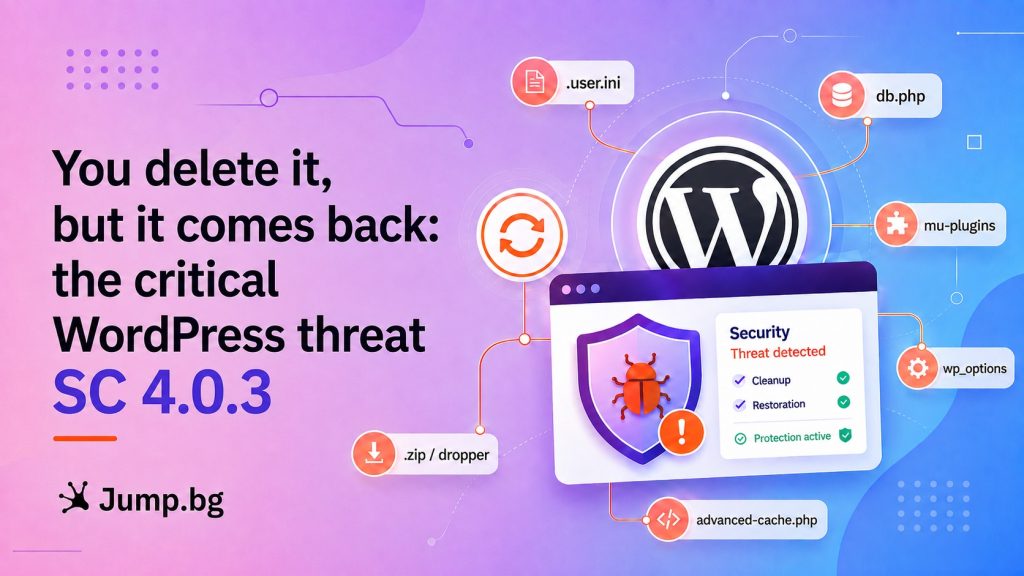
In August 2026, security teams described a new kind of WordPress malware called SC 4.0.3. What sets it apart is not what it does, but how hard it is to remove: it is not a single file but a network of copies hidden in different places, and any copy can restore the rest.
The usual approach, "find the suspicious file, delete it, done", simply does not work here: the file is back within minutes. What the SC 4.0.3 threat actually is, how you can recognise it, how to protect yourself, and how we at Jump.BG can help you: we cover all of it in detail below.
In short
SC 4.0.3 steals administrator passwords, creates a hidden administrator account and restores itself after deletion. It gets in through an outdated core, plugins and themes. If your site is up to date, the risk is small. If you have noticed that a deleted file reappears, or that your site shows visitors content you cannot see yourself, contact us and do not log in to the admin area until we confirm the site is clean. Sites hosted with Jump.BG are monitored proactively, so if anything looks wrong, we will reach out to you first.
Important
Do this today: update everything
This malware gets in through outdated software. Updating closes the front door and takes a few minutes. You do it from the Dashboard menu, Updates section.
- Update the WordPress core to the latest available version.
- Update all plugins, including the deactivated ones.
- Update your theme, and any inactive themes you keep around.
- Turn on automatic updates wherever possible.
- Delete the plugins and themes you do not use. Deactivating them is not enough.
A single outdated plugin is enough to leave the door open.
What SC 4.0.3 does
| What it does | What it means for you |
|---|---|
| Captures administrator passwords | Every time you log in, your password is recorded in plain text. If you use it elsewhere, it has to be changed everywhere. |
| Creates a hidden administrator account | It does not appear in the user list, so checking that there are no unfamiliar administrators proves nothing. |
| Gets in without a password | It can create a valid session for an existing administrator. That is why changing the password on its own does not cut off access. |
| Shows visitors content that is not yours | Hidden pages with adverts, or redirects for people arriving from search engines. To you, the site looks normal. |
| Spreads to neighbouring sites | If one hosting account holds several WordPress installations, the malware moves across to them as well. |
| Covers its tracks | It forges file dates and hides itself from the plugin list. |
Why it comes back after deletion
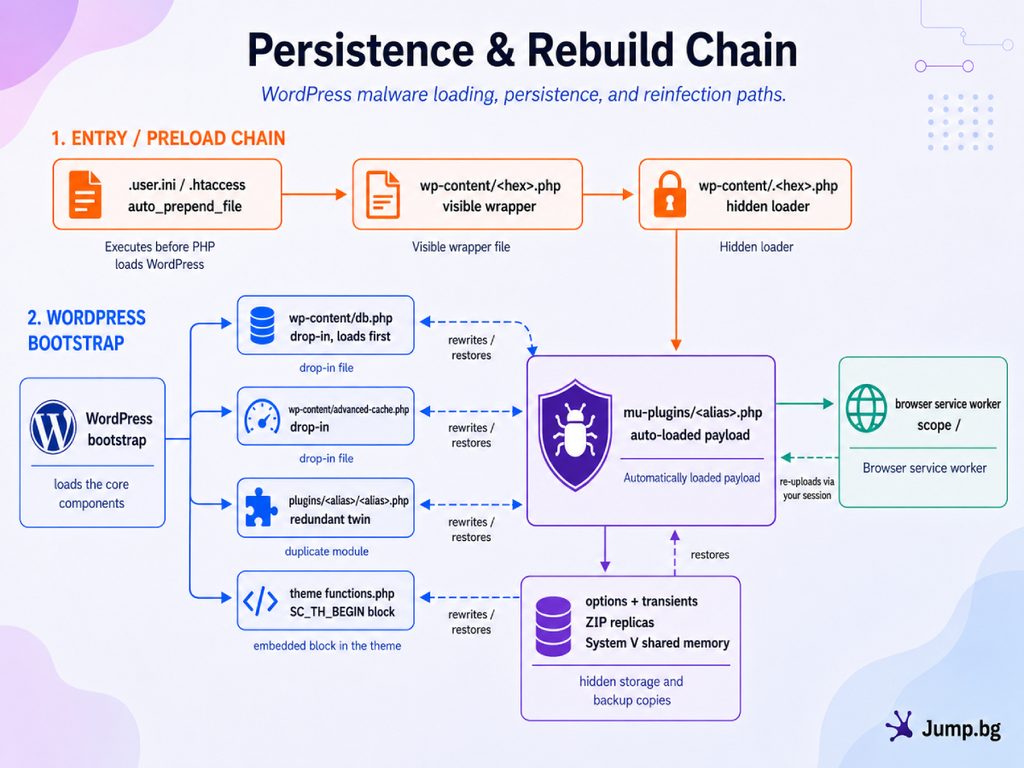
The malware does not rely on one hiding place but on nine: copies of it sit at the same time in several files, in the database, in the PHP settings, in hidden archives, in the server's memory and even in the administrator's browser, there as a service worker. Each copy watches the others and recreates them if they go missing.
This is why several seemingly sensible actions do not help:
- Deleting the file or the plugin. The copies in the theme, in the database and in memory bring it back.
- Updating WordPress. It closes the door but does not clear out what is already inside. Both need doing.
- Restoring from a backup. This only helps if the backup predates the compromise, and file dates have been forged.
- Changing the administrator password. The attacker does not need it.
The approach that works is to take the site offline, remove every copy in one go and only then bring it back. This is not something to do casually on a site that is online.
How to recognise SC 4.0.3
| Sign | What it may mean |
|---|---|
| You delete a file and it reappears | The classic symptom. Another copy survived. |
| Your scanner reports the same finding every day | The scanner removes it, but it is restored before the next scan. |
| Google Search Console shows pages you never created | Hidden content, visible only to search engines. |
| Visitors report a redirect you cannot reproduce | The malware recognises administrators and shows them a clean site. |
| The same plugin appears twice in different places | The two copies are part of one system, not two separate problems. |
The absence of any of these signs is not proof of a clean site, though: on some infected installations everything looks normal for weeks.
How SC 4.0.3 gets into a site
- A flaw in the WordPress core. In July, a vulnerability was fixed that allowed a takeover without a username and password. See our article on WordPress 7.0.2. August brought further updates, 7.0.3 and 7.0.4, and on 19 August WordPress 7.1 was released as well. A site still on a July release has missed all three.
- A flaw in an outdated plugin or theme. Automated scanners crawl sites and check which plugins are installed and at which version. One outdated plugin is enough.
- A guessed or stolen password. Thousands of login attempts from dozens of different addresses, against both the WordPress admin area and the hosting control panel.
What to do if you suspect your site has been compromised
Warning
Do not log in to your site's admin area
If you believe your site is infected, do not log in to its admin area. It is essential that you contact us by email at support@jump.bg. This is the most important rule, and it applies from this moment until we explicitly confirm that the site is clean. Every login hands the attacker a fresh valid session and can put the malware back on a site that has already been cleaned.
- Do not open wp-admin or the login screen in any way.
- Do not log in "just to check something", not even for a second.
- Do not log in from a phone, tablet or another computer. The rule applies to every device.
- Do not log in from an incognito window. It does not remove a service worker that is already stored.
- Tell everyone who has access the same: colleagues, your agency, external contractors.
The first login after this happens only once the site has been cleaned, the browser has been cleared using the steps below and the passwords have been changed.
After that, the order of actions is as follows:
- Do not delete anything and do not restore from a backup. Deleting will not do the job, and restoring destroys the evidence of how the malware got in.
- Contact us. Open a ticket from your client area. We will check the account before anything is changed.
- Tell us who else has access: colleagues, external contractors, the agency that built the site, and which devices they logged in from. Every one of them has to be cleaned.
- Wait for us to confirm that the site is clean. Only then move on to clearing the browsers.
- Change the password everywhere else you have used it: email, banking, social networks. Treat your admin password as publicly known.
How to clear your browser (service worker)
This is the step people skip most often, and it is exactly why sites get reinfected after the site itself has been cleaned. When you visit an infected site, your browser stores a small program called a service worker. It stays in the browser even after the problem on the site has been fixed, it can capture your password at your next login and it can put the malware back on the site by itself.
That is why the clearing has to be done on every device and in every browser anyone has used to log in to the admin area: your computer, your phone, a colleague's laptop, the agency's machine. If you have used two browsers on one computer, then both of them.
Find your browser in the table and follow the path. Everywhere below, your-site.com stands for your site's domain:
| Browser | What to do |
|---|---|
| Chrome, Edge, Brave, Opera (desktop) |
Open Settings, then Privacy and security, then Site settings. Choose Data stored by sites, find your-site.com and click Delete data. |
| Firefox (desktop) |
Open Settings, then Privacy & Security. Under Cookies and Site Data click Manage Data, find your-site.com, click Remove Selected and finally Save Changes. |
| Safari (Mac) |
From the Safari menu choose Settings, then the Privacy tab. Click Manage Website Data, find your-site.com, click Remove and then Done. |
| Safari (iPhone and iPad) |
Open Settings, choose Safari, then Advanced, then Website Data. Find your-site.com, swipe left and tap Delete. |
| Chrome (Android) |
Open the three-dot menu, choose Settings, then Site settings, then All sites. Find your-site.com and tap Delete data. |
If you are more technical, you can remove it directly: press F12, open the Application tab, then Service Workers, and click Unregister for the worker with scope /. Then, under Storage, click Clear site data.
Three things worth knowing about this step:
- It is done after the site has been cleaned, not before. If you clear the browser while the site is still infected, the next login starts it all over again.
- You will be signed out of the sites whose data you delete. That is normal and it only affects that particular domain.
- An incognito window does not solve the problem. It does not clear what is already stored, it only avoids adding anything new.
Only once the site is clean, the browsers have been cleared and the passwords have been changed can you log back in to the admin area. If anything in these steps is unclear, write to us in the ticket and we will go through them together.
Further protective measures
- Review your users. Remove the accounts you do not need, and give the rest the lowest role that lets them do their job.
- Set separate, strong passwords for the admin area, for the hosting account and for the database.
- Two-factor authentication for both WordPress and the hosting control panel.
- Backups stored outside the site. A backup that sits in the account itself gets infected along with it.
What we do at Jump.BG
Hosting accounts at Jump.BG are isolated from one another. Malware on one site cannot cross into a neighbouring account, whatever happens on it.
We do not wait for the customer to notice the problem. We proactively check the sites on our servers for signs of this kind and, as soon as we find a compromised system, we open a ticket and contact the owner. The cleanup is carried out by us in a coordinated window, after which we keep watching the account to make sure the malware does not return.
We work together with Imunify360. The protection monitors files continuously and removes recognised malware the moment it appears, without waiting for anyone to spot it. With SC 4.0.3 this is decisive: as soon as one copy tries to restore another, the automatic cleanup removes it again and the cycle is broken.
Specific settings have been applied at every possible level to prevent the malware from appearing or coming back. ModSecurity, PHP and LiteSpeed are configured more strictly than the defaults, so a share of intrusion attempts never reaches the site at all.
Our security systems are developed continuously and adapt to newly emerging vulnerabilities and threats. Our team of experts works directly with the Imunify360 team: together we review every new variant of the malware and add protection against it, so that we stay ahead of the attacks instead of chasing them.
In summary
If your site is hosted at Jump.BG, four things stand between it and SC 4.0.3:
- Isolation. Malware in one account cannot reach a neighbouring one.
- Proactive monitoring. We find the compromised site and contact you ourselves, without waiting for you to notice.
- Automatic cleanup. Imunify360 removes recognised malware continuously and breaks the self-healing cycle.
- Hardened servers. ModSecurity, PHP and LiteSpeed are configured more strictly, and our team works directly with the Imunify360 team.
Need help?
If you are unsure about the state of your site, you have noticed something described above, or you simply want someone to check that everything is fine, the Jump.BG support team is here. Get in touch and we will check your account.
If you are still choosing where to host your site, take a look at our WordPress hosting plans. They are fast, secure and backed by expert support, so you can focus on your business.
The security of your site matters to us. If you have any questions, get in touch with the Jump.BG team. We are here to help.