On 13 August 2026, the WordPress team introduced an official browser extension. It is free, open source, and already available for Google Chrome and Chromium-based browsers, as well as for Safari on macOS.
The idea behind it is simple: it moves the WordPress shortcuts you use most often out of the website and into the browser toolbar. In this article we explain what the extension actually does, who benefits from it, and how to install it.
In short
The WordPress Browser Extension is an official extension that recognizes whether a site runs on WordPress, hides the admin bar without taking its shortcuts away from you, and gathers all of your sites into a single menu. It also comes with a set of tools for developers. It is free and open source, it works entirely locally, and it collects no data at all.
The problem it solves
When you are signed in to your WordPress site, the admin bar sits at the top of every page. It is convenient, because it keeps the dashboard, the editor and your profile one click away. But it comes at a cost: the bar takes up space on the screen, so the page you are looking at is never quite the page a visitor sees.
On modern sites this shows most clearly. Sticky menus, scroll-driven effects, sections sized against the full height of the screen. All of them shift by a few dozen pixels, and sometimes send you hunting for a problem that does not actually exist. On top of that, many plugins add their own buttons to the bar, and it gradually becomes cluttered.
The classic solution is to switch the bar off in your profile settings. That, however, trades one problem for another: the shortcuts leave along with the bar. The extension removes exactly that tradeoff: it hides the bar but keeps its buttons in the browser. Bringing the bar back takes two clicks, with no trip to the dashboard.
What the extension can do
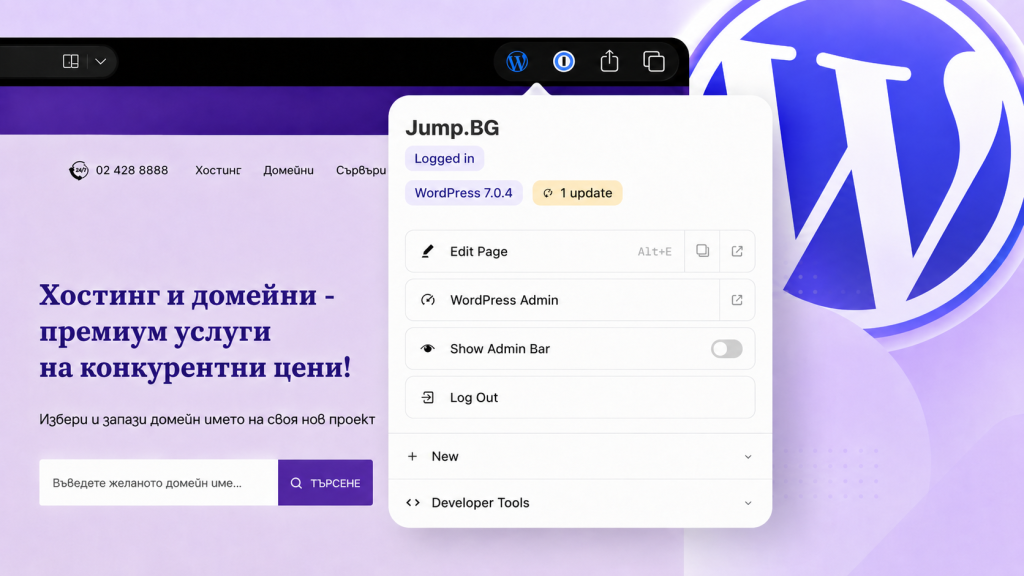
Once installed, a WordPress icon appears in the browser toolbar. It has three states: blue with a green dot when you are signed in to a WordPress site, blue without a dot when the site runs WordPress but you are not signed in, and grey when the page is not WordPress at all. Here are the main capabilities:
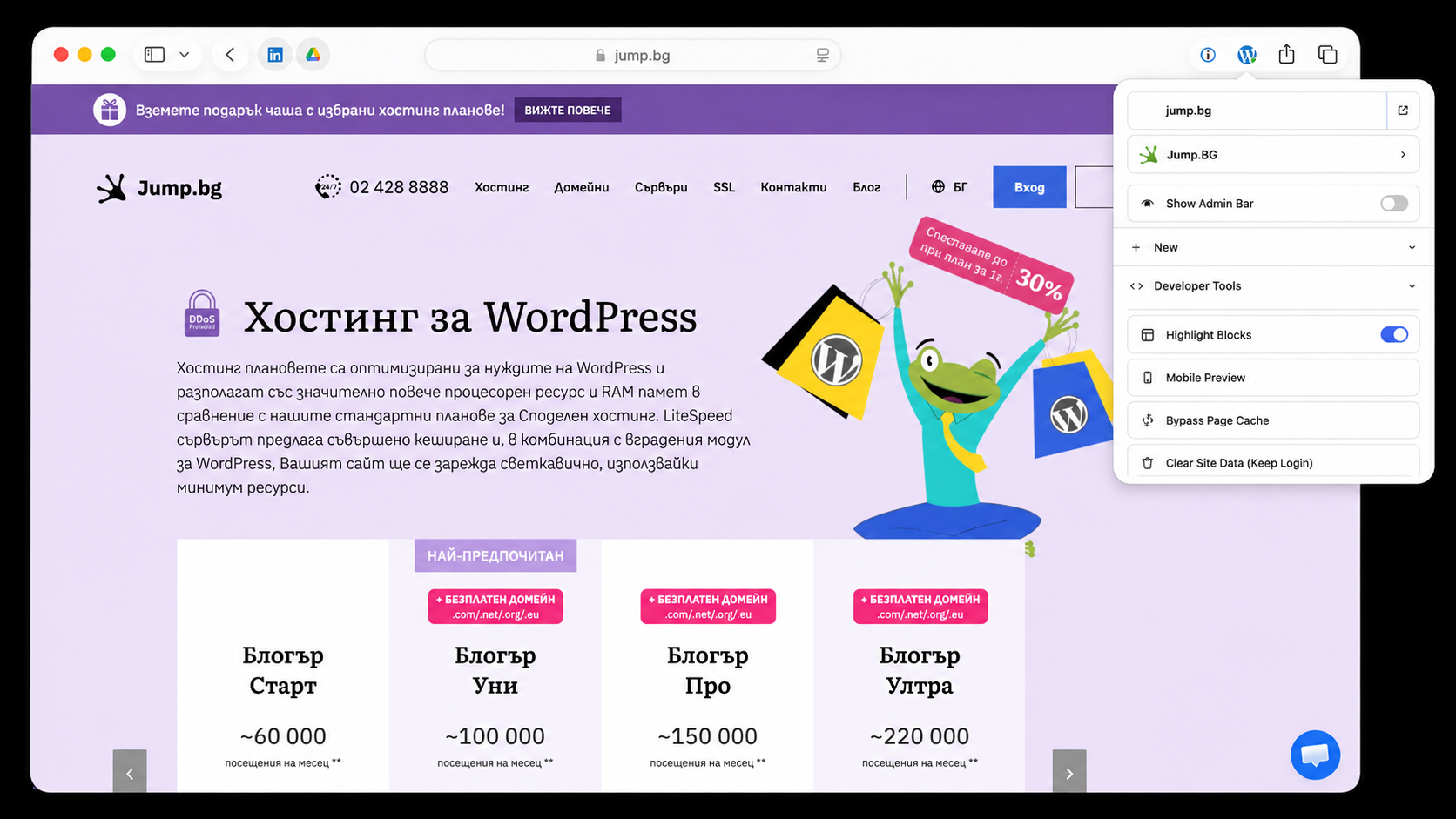
| Feature | What it does |
|---|---|
| WordPress detection | Shows whether the site you are viewing runs on WordPress and whether you are signed in to it. Works on other people’s sites too. |
| Admin bar toggle | For a chosen site or everywhere by default, with no flash on load. It comes back with two clicks. |
| Edit this page | Opens the editor for exactly what you are looking at: a post, page, category, tag, author or custom post type. On block themes, archives and the blog index open in the Site Editor. Keyboard shortcut: Alt+Shift+E (Option+Shift+E on Mac). |
| View / preview from the editor | From an edit screen, opens the published page or a preview of a draft in one click. |
| “+ New” menu | Mirrors the dropdown from the admin bar, with the content types your role is allowed to create. |
| My Sites | A list of the sites you have signed in to from this browser, complete with their site icons. Available from any page, including when you are on a completely different site. |
| Account and sign out | Shows your name and role, with links to your profile and Gravatar. Signing out takes one click, skipping the “are you sure?” screen. |
| Host detection | Identifies WP Engine, WordPress VIP, Pantheon, Kinsta, Flywheel, Cloudways, WordPress.com, Pressable and local development environments. |
Developer tools
Some capabilities are simply a better fit at the browser level than as a plugin inside the site. That is why the extension also carries a handful of tools that work on any WordPress site, without installing anything into it:
- Mobile preview: opens the page in a phone-sized window.
- Cache-busting reload: bypasses the page cache so you see the current version.
- Clear cookies and site data: for the current site, but without signing you out of WordPress.
- Highlight Blocks: draws block boundaries over the rendered page, with a tooltip naming each block. Genuinely useful on block themes.
- Query Monitor toggle: appears automatically if the plugin is installed.
A separate options page holds two more settings: hiding the admin bar by default everywhere, and an experimental site information panel (active theme, plugins, REST namespaces). The panel is off by default, because detection is heuristic and can occasionally produce inaccurate results.
How to install it
The extension is distributed through the official browser stores, under the WordPress Foundation publisher account:
| Browser | Where from | Note |
|---|---|---|
| Chrome and Chromium-based browsers (Edge, Brave, Opera, Vivaldi) | Chrome Web Store | Installs in one click and updates automatically. |
| Safari on macOS | Mac App Store | After installing, launch the app once, then enable the extension under Safari → Settings → Extensions. |
| Firefox | Not yet | Under consideration for a future release. |
The extension is open source under the MIT license. If you prefer, you can also get it from the GitHub repository, where bug reports and suggestions are welcome.
What about privacy?
The extension works entirely on your own device. There is no tracking, no analytics, no third parties. It reads the page in front of it to work out what it is looking at, and when it needs more, it asks the site itself through that site’s own REST interface. Your preferences and the list of your sites stay in your browser. The code is public, and every permission it requests is documented in detail in the project’s own documentation.
Who benefits from it
If you run a single site, the biggest gain is the clean view: you see the page exactly as a visitor sees it, while the editor stays one click away.
If you manage several sites, the My Sites menu saves you from constantly typing addresses and moving between dashboards.
If you are a developer or designer, the preview, cache and block outlining tools do their job on any site, including sites that are not yours, without installing plugins.
One limitation is worth noting: for the time being the extension’s interface is available in English only, although the project is set up to support translations.
The project started as an independent effort by Jake Goldman and became official with active support from Matt Mullenweg. It is maintained by Goldman and Fabian Kägy of Fueled (formerly 10up). The full announcement is available on the official WordPress blog.
Need help?
If you have questions about the extension, about your WordPress site, or you simply want someone to check that everything is working as it should, the Jump.bg support team is here to help. Contact us and we will guide you step by step.
If you are still choosing where to host your site, take a look at our WordPress hosting plans. They are fast, secure and backed by expert support, so you can focus on your business.
We keep an eye on what is new in WordPress so you do not have to. If you have any questions, contact the Jump.bg team. We are here to help.