Website data loss is more common than many WordPress site owners expect. A failed plugin update, malware infection, hosting issue, accidental deletion, or server problem can break critical functionality or make an entire site inaccessible within minutes. Without a reliable backup, recovering lost content, settings, or customer data becomes far more difficult and time-consuming.
Backups provide a safety net that allows you to restore your website when something goes wrong. In this article, we will explore how WordPress backups work in modern environments, what a complete backup includes, and the different methods available to secure your site.
Key Takeaway:
WordPress backups protect websites from data loss due to failed updates, hacking, server issues, accidental deletions, or human error. A complete backup includes both website files and the database, since both are required for full restoration. The most reliable approach is to use automated backups via plugins or hosting providers, combined with off-site storage and regular restore testing.
How WordPress Backups Work in Modern Websites
Modern WordPress backups are designed to capture both website files and database content so a site can be restored after failed updates, malware infections, server problems, or accidental changes. Unlike earlier backup methods that relied heavily on manual downloads, most modern systems now run automatically in the background and create scheduled restore points.
Depending on the hosting environment and website activity, backups may be generated daily, hourly, or through near-real-time incremental systems.
Because WordPress core does not include a built-in full-site backup system, backups are typically handled through hosting providers, plugins, or external cloud services. Many managed WordPress hosts now include automated backups with one-click restore options, while remote cloud backup storage helps protect backup copies from server-level failures and security incidents.
This combination of automation, remote storage, and faster recovery tools has made WordPress backup management more reliable and easier to maintain for both beginners and experienced site owners.
What Should Be Included in a Full WordPress Backup
A full WordPress backup should include all components required to restore the website properly after data loss, corruption, or a server failure. Backing up only part of the site can lead to missing content, broken functionality, or incomplete restorations.
A complete backup should include:
- WordPress core files: These files are required for the WordPress installation to run properly.
- Themes: Custom and installed themes that control the website’s design, layout, and styling.
- Plugins: Installed plugins and their configurations, including functionality related to SEO, security, caching, forms, and eCommerce.
- Media uploads: Images, videos, PDFs, and other uploaded files stored in the WordPress media library.
- WordPress database: The database stores most dynamic website content, including posts, pages, comments, categories, tags, user accounts, settings, and plugin data.
- Configuration and system files: Important files such as wp-config.php, .htaccess, custom scripts, and server-related configurations that affect how the site operates.
Hosting Provider Backups and Cloud-Based Solutions
Modern managed hosting providers play a major role in WordPress backup systems by offering automated backups as part of their hosting plans. These backups are usually created daily and stored on a separate infrastructure from the live website, allowing for quick restoration through the hosting dashboard if something goes wrong, such as a failed update, a server issue, or a security breach.
Many cloud-based backup systems add another layer of protection by storing copies of website data on remote infrastructure separate from the live server. This setup can reduce the risk of total data loss and may improve recovery reliability during outages. In many setups, hosting-level backups are used alongside WordPress backup plugins, creating a layered approach that improves reliability and reduces reliance on a single backup source.
It is also important to avoid storing backups only on the same server as the live website. If the server experiences hardware failure, malware infection, or account compromise, locally stored backups may also be affected.
At Jump.bg, our WordPress hosting is built to give you peace of mind, and backups are a core part of that. We automatically create a daily backup of your website and store it in a remote, secure location separate from your live account. This helps protect your data even if an unexpected issue affects your website or server.
Using a WordPress Backup Plugin for Automation
WordPress backup plugins are commonly used because they automate much of the backup process, reducing the need for manual handling. Most tools allow scheduled backups, off-site storage to cloud platforms, and one-click restoration, making it easier to recover a site after errors, failed updates, or security issues.
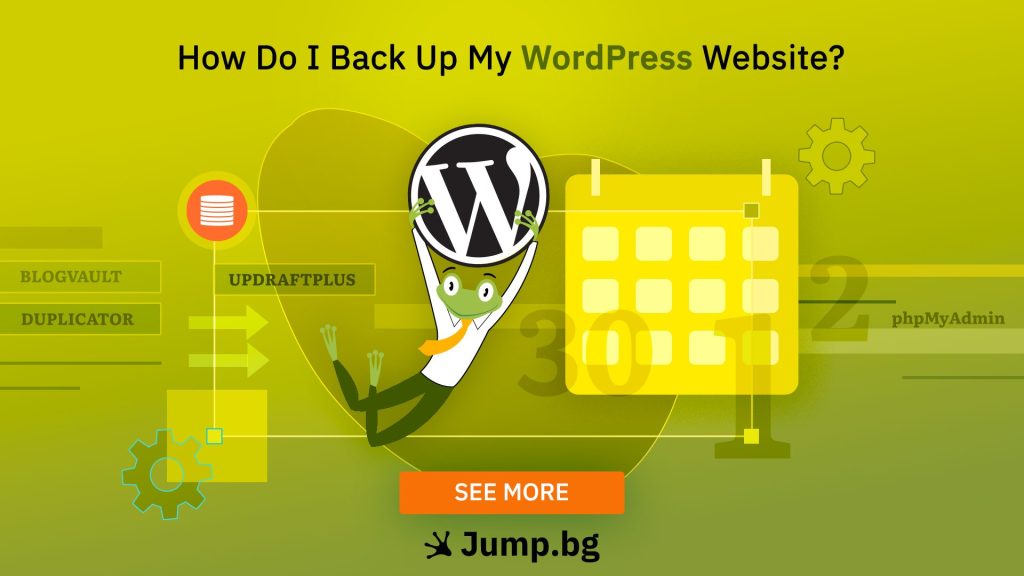
Popular options include UpdraftPlus, widely used for scheduled backups and cloud storage integration; BlogVault, known for real-time backups and easy site restoration; and Duplicator, often used for both backups and site migrations. Many of these tools also support incremental backups, in which only changes since the last backup are saved rather than copying the entire site each time. This can improve performance and reduce storage usage while keeping recovery points up to date.
Manual Method: How to Back Up a WordPress Website
A manual WordPress backup involves downloading website files directly from the hosting server and exporting the WordPress database separately. Website files are commonly accessed through an FTP client or hosting file manager, while databases are usually exported using phpMyAdmin or similar database management tools. This method gives users full access to the backup process and allows complete control over how backup files are stored and managed.
Manual backups are often used by developers, advanced users, or website owners who prefer direct oversight of their data. However, the process requires careful handling because missing files, incorrect database exports, or outdated backup copies can lead to incomplete restorations. Since manual backups are not automated, they must also be performed consistently to avoid losing recent website changes.
How to Restore a WordPress Backup Safely
Restoring a WordPress backup is the process of returning your website to a previous working state after something goes wrong, such as a failed update, a broken plugin, or a security issue. In most plugin-based systems, this can be done directly from the WordPress dashboard using a built-in restore option that replaces both the website files and the database with a saved version. The process is often designed to minimize downtime, though recovery speed varies depending on website size and hosting environment.
For manual restoration, the backup files must be re-uploaded to the hosting server, and the database must be imported using tools such as phpMyAdmin. While this method requires more technical steps, it offers full control over how the site is rebuilt. In both approaches, files and the database must be restored in sync, since mismatched versions can cause errors or break website functionality after recovery.
Best Practices for a Reliable WordPress Backup Strategy
A reliable WordPress backup strategy depends on consistency, redundancy, and verification. Instead of treating backups as a one-time setup, they should be aligned with how often the website changes and how critical the data is. High-activity sites, such as blogs or eCommerce stores, require more frequent backups than static websites.
- Set a consistent backup schedule: Adjust the backup frequency based on how often your site updates. More activity means shorter intervals between backups.
- Use multiple storage locations: Avoid relying on a single storage source. Keep backups in separate locations, such as cloud storage and external servers, to reduce the risk of total data loss.
- Store backups off-site: Keep backup copies outside the main hosting environment to protect them from server failure, hacking, or hosting issues.
- Test backups regularly: Periodically restore a backup in a safe environment to confirm that files and databases work correctly and can be recovered when needed.
Conclusion
Backups are a core part of managing a WordPress website, especially when dealing with constant updates, plugin changes, and potential security risks. Modern solutions like automated plugins, hosting-level backups, and cloud storage have made it much easier to protect website data without complex manual processes.
A reliable backup system is not just about creating copies, but about keeping them consistent, complete, and usable when needed. When combined with proper storage and regular testing, a structured backup approach helps ensure a WordPress site can be recovered quickly and with minimal disruption.