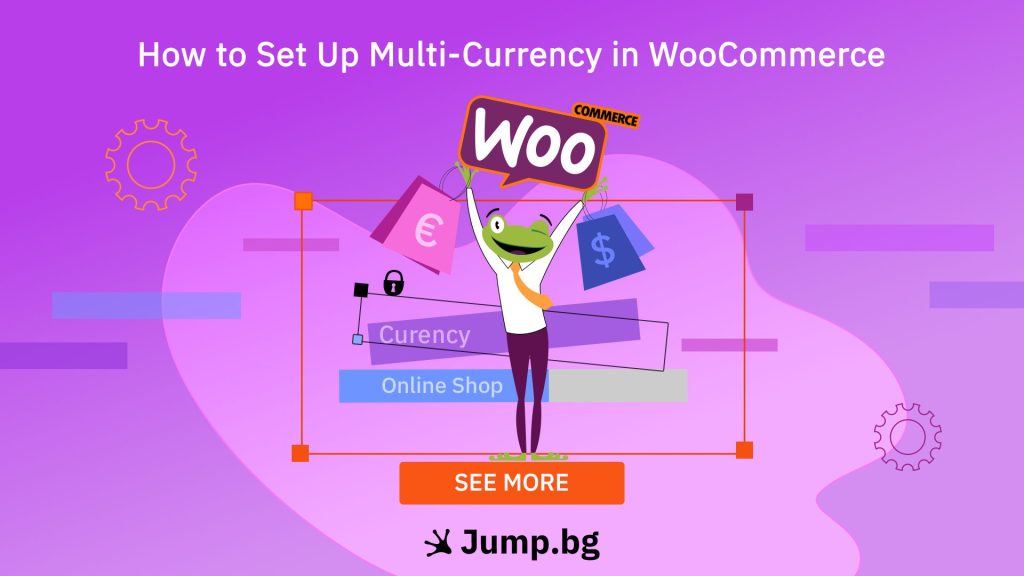
Selling to customers in different countries often means dealing with multiple currencies. If your WooCommerce store displays prices in a single currency, international shoppers may need to convert prices themselves, which can create friction during the buying process. By enabling multi-currency functionality, you can display prices in your customers' preferred currencies and provide a more localized shopping experience.
For many online stores, offering local-currency pricing can improve customer confidence, reduce uncertainty at checkout, and create a smoother purchasing experience for international buyers.
In this guide, we'll explain how to set up multi-currency in WooCommerce, from choosing the right solution to configuring currencies, exchange rates, and customer-facing currency options.
Key Takeaway:
Setting up multi-currency in WooCommerce requires a compatible multi-currency plugin, configured exchange rates, a currency selector, and a payment gateway that supports your chosen currencies. After setup, test product pricing, cart totals, and checkout functionality across all supported currencies to ensure customers can view accurate prices and complete purchases successfully.
What Is Multi-Currency in WooCommerce?
Multi-currency in WooCommerce allows your store to display product prices and process purchases in multiple currencies. Instead of showing all customers the same currency, you can give shoppers the option to select their preferred pricing format or automatically display prices based on their location.
This functionality is typically added through a WooCommerce multi-currency plugin, as WooCommerce does not include native support for multiple currencies. Depending on the solution you choose, you can configure supported currencies, exchange rates, currency switchers, and location-based detection.
How Multi-Currency Works
When a customer visits your store, a multi-currency solution converts product prices from your store's base currency into one of your supported currencies using predefined or automatically updated exchange rates. The customer can then browse products, view prices, and, if supported by your payment gateway and plugin, complete checkout in their selected currency.
Benefits of Multi-Currency in WooCommerce
Offering multiple currencies can provide several advantages for stores selling internationally. While the exact impact depends on your audience and target markets, multi-currency support can help improve the overall shopping experience.
- Improved user experience: Customers can view prices in a familiar currency without manually converting amounts.
- Higher trust levels: Localized pricing can make international shoppers feel more comfortable purchasing from your store.
- Reduced cart abandonment: Clear pricing helps eliminate uncertainty during checkout.
- Better support for international markets: Customers in different countries can browse products with pricing relevant to their countries.
- Potential conversion improvements: A more localized shopping experience may encourage more purchases.
What You Need Before Setting Up Multi-Currency in WooCommerce
Before you begin, make sure you have the following in place:
- A WooCommerce store: Your store should already be set up with products and a default currency, as all conversions will be based on your primary store currency.
- A multi-currency plugin: WooCommerce does not support multiple currencies by default, so you'll need a plugin that can handle currency switching, conversion, and exchange rates.
- A compatible payment gateway: Verify that your payment provider supports the currencies you plan to offer to avoid checkout or payment processing issues. Keep in mind that currency availability may vary depending on your merchant account and country.
- Exchange rate settings: Decide whether to use manually configured exchange rates or automatic updates provided by your chosen plugin.
Setting Up Multi-Currency in WooCommerce
Step 1: Choose a WooCommerce Multi-Currency Plugin
Since WooCommerce does not support multiple currencies by default, you'll need a plugin to add this functionality.
Popular options include WooCommerce Multilingual & Multicurrency (WPML), CURCY Multi Currency for WooCommerce, FOX Currency Switcher, and Aelia Currency Switcher.
Each solution is designed for slightly different use cases. WPML is commonly used for multilingual stores; CURCY is often chosen for its user-friendly setup; FOX Currency Switcher focuses on flexible currency switching; and Aelia Currency Switcher is frequently used in more advanced WooCommerce environments.
When comparing plugins, look for support for multiple currencies, exchange rate management, currency switchers, geolocation-based currency detection, and compatibility with your payment gateway. The exact features available will vary by plugin version and licensing plan, so choose a solution that aligns with your store's requirements and target markets.
Step 2: Install and Activate the Plugin
After selecting a plugin, install and activate it on your WordPress website. Once activated, open the plugin settings and review the available options for currencies, exchange rates, and currency switching.
The setup process varies by plugin, but most provide a central dashboard for managing your multi-currency configuration.
Step 3: Add and Configure Multiple Currencies
Add the currencies you want to support based on the countries and regions you serve. Most plugins allow you to configure how prices are displayed throughout your store.
Common settings include:
- Currency symbols
- Decimal formatting
- Price rounding rules
- Display formats
You'll also need to configure exchange rates. Depending on your chosen plugin, you can either enter rates manually or enable automatic updates from an exchange rate provider.
Manual rates offer greater pricing control, while automatic updates help keep converted prices aligned with current market conditions.
Manual vs Automatic Exchange Rates
Choosing between manual and automatic exchange rates depends on your pricing strategy and how closely you want prices to follow market fluctuations.
- Manual exchange rates: Provide full control over pricing and profit margins. They are often preferred by stores that want stable product pricing regardless of short-term currency fluctuations.
- Automatic exchange rates: Update currency values automatically using data from exchange rate providers. This reduces administrative work and helps prices reflect current market conditions.
Many store owners use automatic rates for convenience, while others prefer manual rates when operating in markets with significant currency volatility.
Step 4: Add a Currency Switcher to Your Store
Configure a currency switcher so customers can select their preferred currency while browsing your store. Depending on your plugin, the switcher can typically be displayed in your header, navigation menu, sidebar, or footer.
A visible, easy-to-use currency switcher helps customers quickly switch currencies without interrupting their shopping experience.
Some plugins also support automatic detection based on a customer's location. While this can improve convenience, it's important to follow a few best practices:
- Allow customers to change currencies manually.
- Verify that location detection works correctly in your target regions.
- Keep exchange rates updated regularly.
- Avoid unexpected currency changes during checkout.
Providing both automatic detection and manual selection helps create a smoother experience for international customers while reducing potential confusion.
It's also worth testing your caching configuration if you use a caching plugin or CDN. In some cases, cached pages can display incorrect currencies to visitors if multi-currency settings are not configured properly.
Step 5: Test the Multi-Currency Experience
Before making your setup available to customers, thoroughly test your store's performance across all supported currencies. Even small configuration issues can lead to incorrect pricing, checkout problems, or payment failures.
Review product pages, category pages, the shopping cart, and the checkout process to confirm that prices convert correctly and that transactions complete successfully.
Use the following checklist before going live:
- Multiple currencies have been added and configured.
- Exchange rates are accurate and updating properly.
- Currency switcher is visible and functioning correctly.
- Product prices convert as expected.
- Shopping cart totals display correctly.
- Checkout supports selected currencies.
- Payment gateway accepts supported currencies.
- Taxes and shipping calculations remain accurate.
- Test orders complete successfully.
Testing each supported currency helps ensure a consistent experience for customers, regardless of where they shop.
Common Multi-Currency WooCommerce Mistakes to Avoid
Multi-currency functionality can significantly improve the customer experience, but configuration errors can lead to pricing inconsistencies and checkout issues. Here are some of the most common problems store owners encounter.
- Not verifying payment gateway support.
- Using outdated exchange rates.
- Relying solely on automatic currency detection.
- Ignoring currency formatting settings.
- Skipping checkout testing.
- Offering unsupported currencies.
- Forgetting about caching and CDN settings.
Conclusion
Setting up multi-currency in WooCommerce can help create a more localized shopping experience for international customers by displaying prices in their preferred currencies. While the exact setup process varies by plugin, the core steps remain the same: select a reliable multi-currency solution, configure currencies and exchange rates, add a currency switcher, and thoroughly test the customer experience before going live.
A properly configured multi-currency setup can help international customers shop with greater confidence while improving conversion opportunities across global markets.
By taking the time to set up and verify your configuration properly, you can help ensure accurate pricing, a smoother checkout experience, and better support for customers across regions.
If you're running a WooCommerce store, having the right infrastructure and technical support is just as important as configuring the right features. At Jump.BG, our Shop Hosting solutions are designed to provide the performance, security, and reliability online stores need. At the same time, our WordPress Support service can help with WooCommerce configuration, troubleshooting, updates, and ongoing maintenance.
For questions about hosting or managing your WordPress and WooCommerce website, you can reach our team at 02 428 8888 or support@jump.bg.